Clean Temporary Files via Command Line on Windows 10 & 11
Fast scripts to clear user and system Temp folders without opening settings
Short answer: You can instantly delete temporary files on Windows without opening Settings by running PowerShell or Command Prompt as Administrator. Commands like `del /q /f /s %TEMP%\*` and PowerShell's `Remove-Item` wipe gigabytes of leftover install caches in seconds.
Below are the essential command-line recipes for clearing Windows Temp, system prefetch, user caches, and scheduling automated batch cleanups.
Key Takeaways
- Windows has two main temp locations: user Temp (`%localappdata%\Temp`) and system Temp (`C:\Windows\Temp`).
- Running `del /q /f /s %TEMP%\*` removes all unlocked files silently without confirmation prompts.
- `cleanmgr /sagerun:1` executes pre-configured deep Windows storage cleanup via command line.
- Files in active use by open applications will show 'Access Denied', which is normal and safe.
- DiskMop gives you full visual control over temp caches and uninstalled leftovers without memorizing syntax.
Clean temp files and uninstaller leftovers visually with DiskMop.
DiskMop automatically scans, identifies, and safely cleans hidden caches, app leftovers, and system junk.
Windows Temp Directories & CLI Removal Commands
| Target Cache | Directory Path | Recommended Command | Safety Level |
|---|---|---|---|
| User Temp Folder | %TEMP% (%localappdata%\Temp) | del /q /f /s %TEMP%\* | 100% Safe (Unlocked files) |
| System Temp Folder | C:\Windows\Temp | del /q /f /s C:\Windows\Temp\* | Safe (Requires Admin) |
| Windows Prefetch | C:\Windows\Prefetch | del /q /f /s C:\Windows\Prefetch\* | Safe (Rebuilds automatically) |
| SoftwareDistribution | C:\Windows\SoftwareDistribution\Download | net stop wuauserv && del ... | Safe for Windows Update cache |
Why use the command line instead of Storage Sense?
While Windows Settings includes Storage Sense, it often leaves behind gigabytes of locked or aged developer logs, node_modules caches, and installer extraction folders.
The command line allows power users to clear temp files instantly before taking drive backups or deploying disk images.
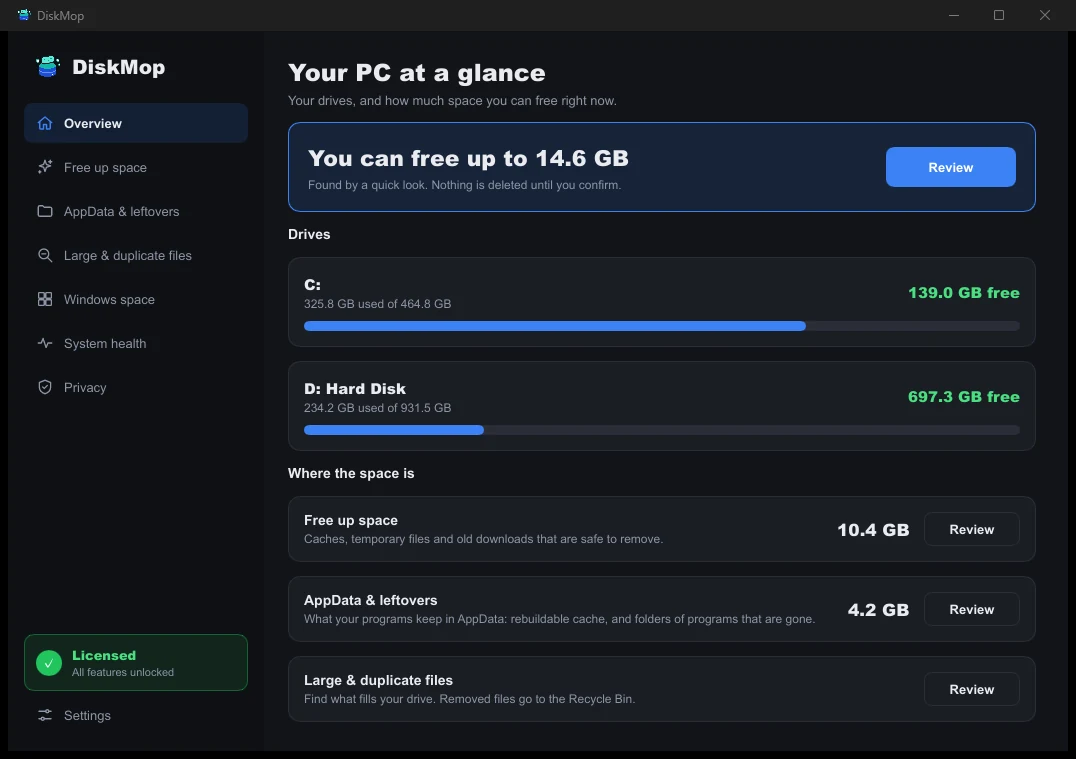
How DiskMop Solves This: Overview
See all your disk usage on a single screen. Instantly identify areas that can be cleaned.
Frequently Asked Questions
Is it safe to delete everything in the Temp folder?
Yes. Files in Temp are temporary scratch files. Windows will automatically block the deletion of files currently in use by active software.
Why do some files give 'Access is denied' in CMD?
This means a running application or system service currently has the file open. Close running programs or restart into Safe Mode to delete them.
Can I automate this with a batch file (.bat)?
Yes, you can save the `del` commands into a clean.bat file and run it automatically via Windows Task Scheduler.
Does DiskMop do what these commands do?
Yes, DiskMop cleans both Temp directories and scans deep into AppData, browser caches, and orphaned uninstall folders with full preview.
Verdict
Command line cleanup is fast and powerful for scripts, but it can miss hidden AppData residue. Use DiskMop for deep scanning with a visual overview of every file.
Clean temp files and uninstaller leftovers visually with DiskMop.
DiskMop automatically scans, identifies, and safely cleans hidden caches, app leftovers, and system junk.