Browser Cache vs Cookies: Differences & What Is Safe to Clear
Free disk space and protect online privacy without getting logged out of everywhere
Short answer: The browser cache stores media assets (images, stylesheets, video scripts) so websites load faster. Cookies store login sessions, shopping cart contents, and advertising tracking tokens. Clearing cache frees gigabytes of disk space without logging you out; clearing cookies logs you out of active accounts and resets site preferences.
Below is the breakdown of what each data type does, how often to clean them, and how DiskMop cleans gigabytes of cached media across Chrome, Edge, Firefox, and Brave while keeping your saved logins intact.
Key Takeaways
- Browser cache is purely for speed: it contains static images, video fragments, and website scripts.
- Clearing the cache never logs you out of your accounts or erases stored passwords.
- Cookies store session tokens and tracking IDs; wiping them requires re-entering account credentials.
- Caches can quietly swell to 10 GB – 25 GB across multiple browsers if left unchecked.
- DiskMop Privacy Cleaner allows you to wipe bulky cache assets while preserving authentication cookies.
Clean browser cache across all browsers in one click with DiskMop.
DiskMop automatically scans, identifies, and safely cleans hidden caches, app leftovers, and system junk.
Browser Cache vs Browser Cookies Comparison
| Category | Browser Cache | Browser Cookies | IndexedDB / Site Storage |
|---|---|---|---|
| What is stored? | Images, CSS, JS scripts, fonts | Login session tokens, user ID | Offline web app data (e.g. Spotify web) |
| Disk Space Impact | Huge (2 GB – 15 GB per browser) | Tiny (Few megabytes total) | Moderate (500 MB – 3 GB) |
| Effect of Deletion | Slightly slower first page load | Logged out of websites | Web apps re-download offline data |
| Frequency to Clear | Monthly or when disk is tight | When troubleshooting login errors | Rarely (Only on corrupted sites) |
Why browsers accumulate massive cache folders
Every video thumbnail on YouTube, social media avatar on X, and banner image on news sites gets written into your local user AppData folder.
Over months of browsing, these temporary web fragments fragment your disk and consume valuable SSD capacity. Clearing them forces the browser to pull fresh, updated website assets.
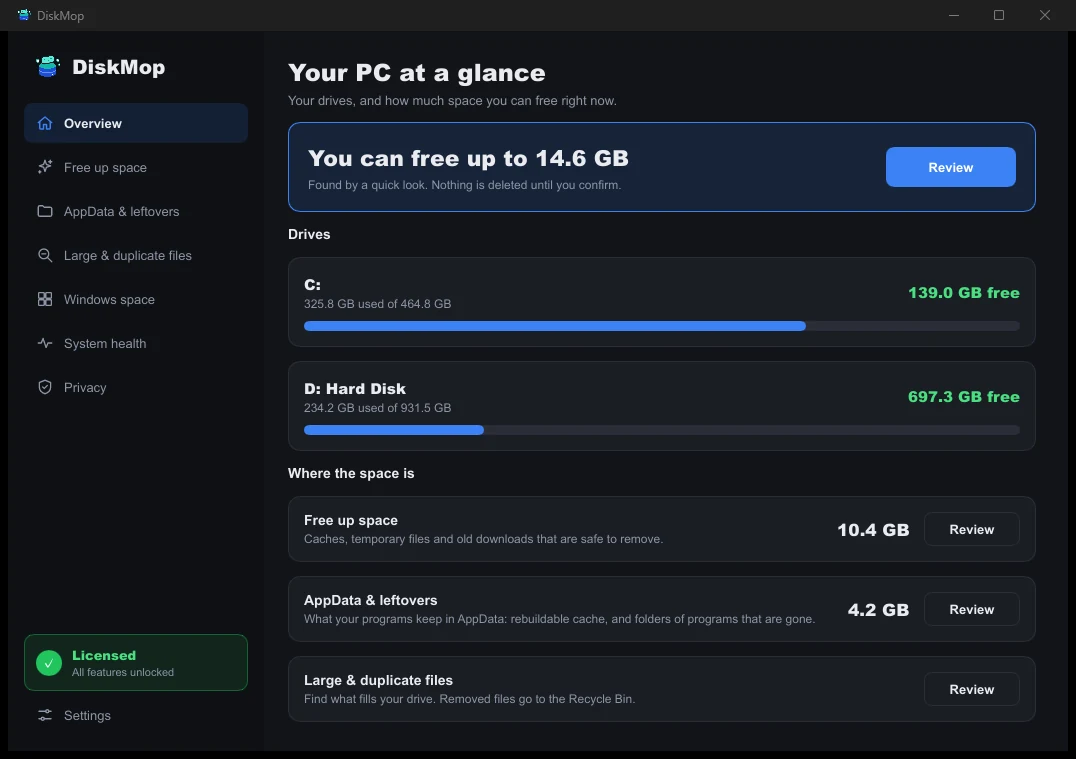
How DiskMop Solves This: Overview
See all your disk usage on a single screen. Instantly identify areas that can be cleaned.
Frequently Asked Questions
Will clearing cache delete my saved passwords?
No. Passwords are stored in a separate encrypted credentials database. Clearing cache only deletes downloaded web media.
Why do websites load slower after clearing cache?
On the first visit after a cleanup, your browser must re-download images and layout files over the internet. Subsequent visits will be just as fast.
Does clearing cookies stop cross-site tracking?
Yes, clearing tracking cookies wipes unique third-party identifier tokens used by advertising networks to profile your browsing behavior.
Can DiskMop clean multiple browsers simultaneously?
Yes. DiskMop scans and cleans cache folders across Google Chrome, Microsoft Edge, Mozilla Firefox, Brave, and Opera simultaneously.
Verdict
Clear your browser cache regularly to regain gigabytes of disk space. Leave cookies alone unless you suspect privacy tracking or need to resolve broken login sessions.
Clean browser cache across all browsers in one click with DiskMop.
DiskMop automatically scans, identifies, and safely cleans hidden caches, app leftovers, and system junk.