Fix Slow Windows Startup: 5 Proven Steps to Reduce Boot Time
A Complete Guide to Reducing Windows Startup Time
Does your computer take minutes to boot up? A slow Windows startup is one of the most common frustrations for PC users, yet many accept it as inevitable. The truth is that with the right steps, you can dramatically reduce your boot time and get to work faster.
In this guide, we'll walk through the five most impactful optimizations you can make to fix slow boot times. From disabling unnecessary startup programs to scheduling automated maintenance, each step targets a specific cause of sluggish performance.
Key Takeaways
- The leading cause of sluggish Windows boot times is an excess of third-party apps launching simultaneously at startup.
- Disabling high-impact startup apps in Task Manager can instantly slash Windows boot times by 30 to 45 seconds.
- Setting dormant third-party background services to 'Manual' alleviates severe early boot CPU and disk read bottlenecks.
- Maintaining at least 15–20% free space on drive C: ensures virtual memory paging and filesystem scans initialize without stutter.
- DiskMop Startup Manager and Scheduled Cleanup automate boot optimization without dangerous registry tampering.
Speed up your Windows startup with Disk Mop
DiskMop automatically scans, identifies, and safely cleans hidden caches, app leftovers, and system junk.
Key factors causing slow Windows boot times and targeted resolutions
| Lag Source | Boot Impact | Typical Delay | Recommended Action | Risk Level |
|---|---|---|---|---|
| Third-Party Startup Apps | High | 15 – 45 seconds | Disable via Task Manager or DiskMop Startup Manager | None (Safe) |
| Dormant Background Services | Moderate - High | 10 – 25 seconds | Configure to 'Manual' in services.msc | Low (Preserve Microsoft services) |
| Low Drive C: Free Space (<15%) | High | 20 – 60 seconds | Purge caches and duplicates with DiskMop | None |
| Corrupt Fast Startup Hibernation | Moderate | 10 – 20 seconds | Reset via 'powercfg -h off' followed by 'on' | None |
| Legacy Mechanical HDD | Critical | 1 – 3 minutes | Migrate operating system to a modern SSD | Hardware Upgrade |
Disable Unnecessary Startup Programs
The most common reason Windows is slow to start is the sheer number of programs that launch automatically at boot. Every application you install can add itself to the startup list, and over time this list grows out of control. When your PC powers on, dozens of programs compete for CPU and disk resources simultaneously, causing significant delays.
While you can check the Startup tab in Task Manager, it's not always clear which programs are safe to disable. Disk Mop's Startup Manager lists all startup applications in a clean interface with a simple enable/disable toggle, making it easy to take control of what runs at boot without worrying about breaking anything.
Programs like cloud sync clients, messaging apps, and update checkers are typically unnecessary at startup. Disabling them can reduce your boot time by 30-50%.
Manage Windows Services
Beyond startup programs, background Windows services also contribute to slow boot times. These services run invisibly and consume system resources. Items like the Fax service, Remote Desktop services, or printer spoolers you never use can waste valuable CPU and memory during startup.
Windows' built-in services.msc tool requires technical knowledge, and disabling the wrong service can cause system instability. Disk Mop's Service Manager organizes services into understandable categories, clearly showing which ones can be safely disabled or set to manual startup.
Setting unused services to "Disabled" or "Manual" startup type reduces the number of services loaded at boot, lowering both memory and CPU usage from the very first moment your system starts.
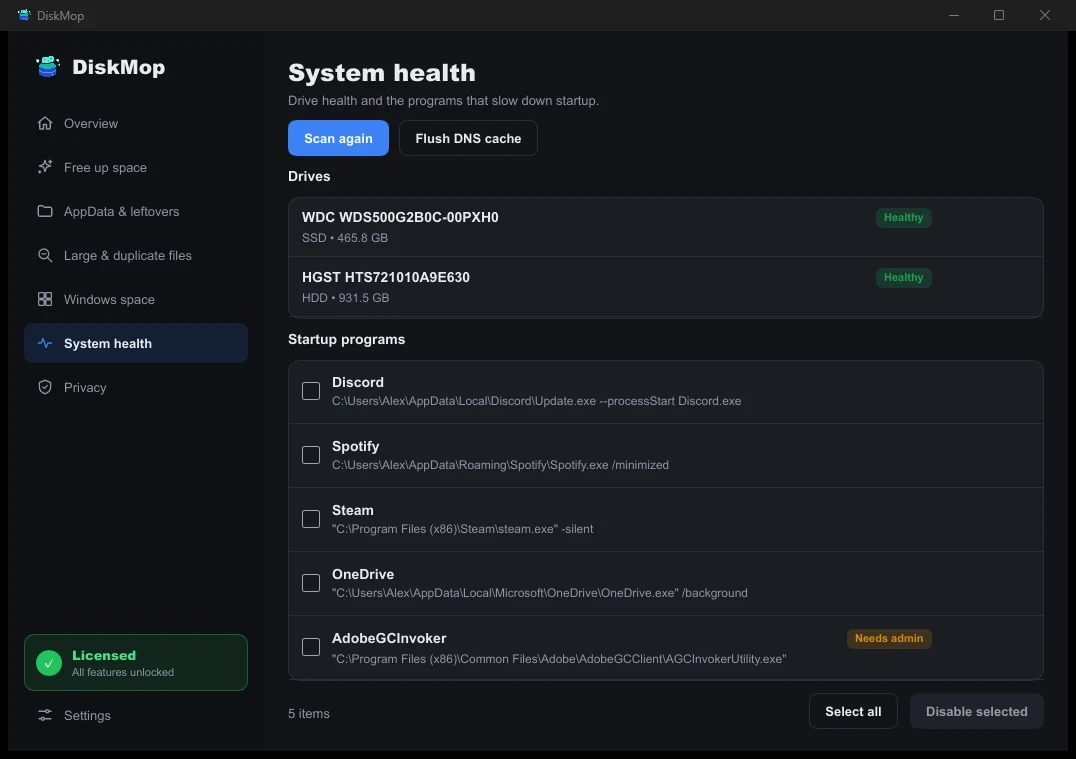
How DiskMop Solves This: Startup
Manage programs that launch with your computer. Reduce boot time.
Clean Temporary Files and Cache
Windows and applications generate large amounts of temporary files and cached data as they run. Over time, these files can consume gigabytes of space. A cluttered disk slows down Windows' file system scans during boot and negatively impacts virtual memory management.
Browser caches, Windows Update remnants, application temp files, and system logs are among the biggest space consumers. Disk Mop's Cache Cleaner scans all these temporary files in one click, showing you exactly what can be safely removed so your system can breathe again.
Regular cache cleaning doesn't just free up disk space — it directly improves boot performance. This is especially critical for SSD users, as maintaining adequate free space preserves the drive's write performance over time.
Free Up System Drive Space
Having sufficient free space on your C: drive is essential for a healthy boot process. Windows constantly needs disk space for the page file, hibernation file, and update files. When your C: drive is more than 90% full, startup times increase noticeably.
The first step to freeing space is identifying what's consuming it. Disk Mop's Disk Analysis feature scans your drive with an interactive treemap visualization, instantly revealing the largest files and folders. The Large File Finder detects files over 500 MB, and the Duplicate Finder helps you locate redundant copies wasting space.
Aim to keep at least 15-20% of your system drive free. This ensures Windows has enough room for virtual memory operations and updates, directly contributing to faster boot times.
Schedule Regular Maintenance
Keeping your computer fast at startup isn't a one-time task. Over time, new programs get installed, temporary files accumulate, and the service list grows. Prevention is far more effective than repeatedly performing manual cleanups after performance has already degraded.
Disk Mop's Scheduled Cleanup feature lets you set up weekly or monthly maintenance routines. It automatically performs cache cleaning, temporary file removal, and recycle bin emptying, keeping your system optimized without any manual effort.
Establishing an automated maintenance routine is the most effective way to preserve your startup performance long-term. A weekly cleanup schedule ensures your system maintains its peak performance day after day.
Frequently Asked Questions
What is an acceptable Windows startup duration?
On a modern NVMe SSD, Windows 11 or 10 should reach the usable desktop within 10 to 20 seconds. Any duration over 45 seconds indicates startup bloat.
Does disabling startup programs uninstall them?
No. Disabling an app from startup merely stops it from booting automatically in the background; you can launch it normally anytime.
Can Fast Startup cause slow booting?
If the hibernation cache (hiberfil.sys) becomes corrupt, Fast Startup can cause black screen delays during boot. Resetting powercfg resolves it.
Why does Windows get stuck on a black screen before login?
Black screen delays are typically caused by outdated graphics drivers, conflicting background services, or an overfilled drive C:.
Verdict
Slow Windows startup is usually caused by a combination of factors. Reducing startup programs, disabling unnecessary services, cleaning temporary files, freeing disk space, and scheduling regular maintenance — applying all five steps together will significantly reduce your boot time.
Disk Mop brings all these optimizations under one roof. Its Startup Manager, Service Manager, Cache Cleaner, Disk Analysis, and Scheduled Cleanup features work together seamlessly, ensuring your computer always boots at peak performance.
Speed up your Windows startup with Disk Mop
DiskMop automatically scans, identifies, and safely cleans hidden caches, app leftovers, and system junk.