How to Find and Delete Duplicate Files on Mac
Same file, many copies: find exact duplicates by content and keep one
Short answer: macOS has no built-in tool that lists duplicate files in Finder. You can spot some by sorting a folder by name or size, and the Photos and Music apps flag their own duplicates, but for documents, downloads, archives and videos you need something that compares what is inside the files. DiskMop for Mac does that in Large & duplicate files > Duplicates.
This guide explains where duplicates come from, what you can do with the tools Apple provides, how DiskMop decides two files are identical, and how to remove the extra copies without losing the original.
Key Takeaways
- Finder cannot show duplicates for you; the Photos app (Duplicates album) and the Music app (Show Duplicate Items) only cover their own libraries.
- DiskMop treats two files as duplicates only when their content is identical: same size, same first 64 KB, then the same full SHA-256 fingerprint. Names and dates are ignored.
- Files under 1 MB are skipped, and two names pointing to the same data (hard links) are not counted as duplicates, because deleting one would free nothing.
- Removed copies go to the Trash, so you can still restore one before you empty it.
Find duplicate files on your Mac with DiskMop
DiskMop automatically scans, identifies, and safely cleans hidden caches, app leftovers, and system junk.
Ways to find duplicate files on a Mac
| Method | Compares | Covers | Good for |
|---|---|---|---|
| Finder: sort by name or size | Names and sizes only | One folder at a time | Spotting obvious copies such as report (1).pdf |
| Photos and Music duplicate tools | Their own libraries | Photos or songs only | Duplicates inside those apps |
| Terminal tools such as fdupes | File content | Any folder you point at | Comfortable with the command line |
| DiskMop Duplicates tab | Size, first 64 KB, then full SHA-256 | Your files or a drive you choose | Documents, downloads, archives, videos |
Where Duplicate Files Come From
Most duplicates are accidents: the same installer downloaded twice, an attachment saved from mail and again from a chat, a project folder copied before a risky change, a backup copied into another backup. Cloud folders add more when a sync conflict creates a second file with a different name.
They are rarely small. A few duplicated videos or disk images can take more space than thousands of tiny files, which is why looking for duplicates larger than a megabyte is the efficient way to start.
What Finder, Photos and Music Can Do
Finder can sort a folder by name, kind or size, and a Smart Folder can list files over a given size, but nothing compares contents. Two files with different names look unrelated. The Photos app has a Duplicates album for photos it considers identical, and the Music app can show duplicate songs from the File > Library menu. Neither looks at the rest of your Mac.
Terminal tools such as fdupes, installed with Homebrew, compare contents and work well if you are comfortable with the command line. If you prefer a window with a preview of what will be removed, use a duplicate finder with a review step.
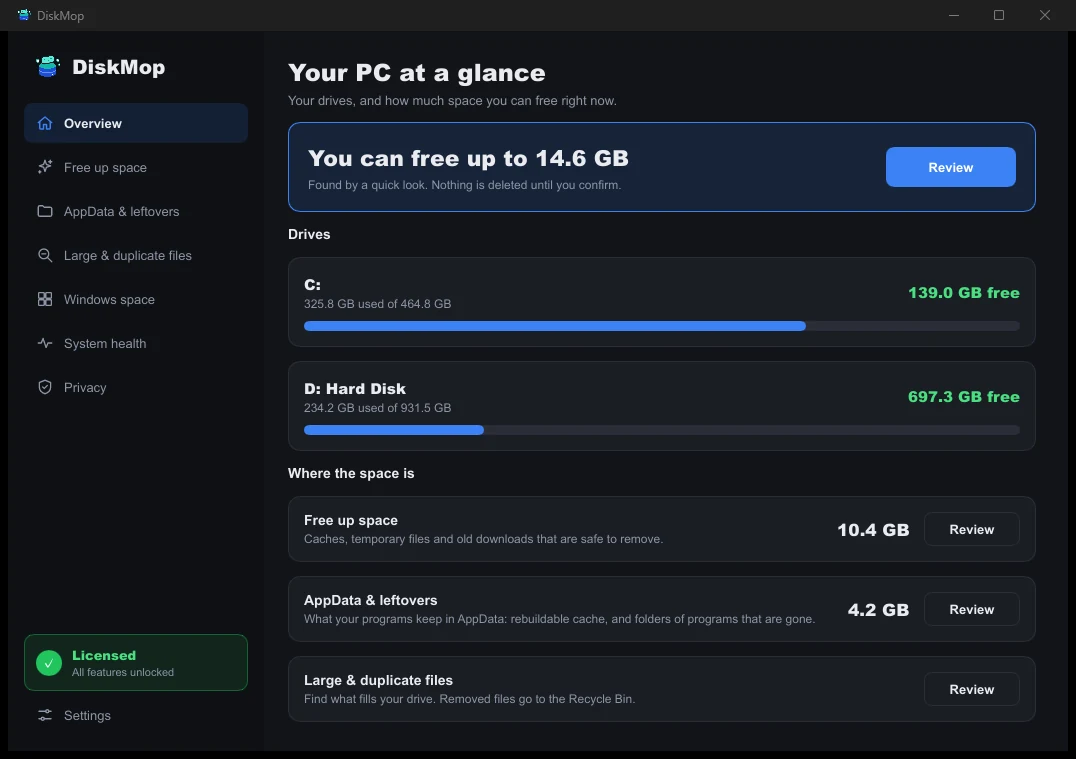
How DiskMop Solves This: Overview
See all your disk usage on a single screen. Instantly identify areas that can be cleaned.
How DiskMop Decides Two Files Are the Same
DiskMop groups files that have exactly the same size, then compares the first 64 KB, and only for files that still match computes a full SHA-256 fingerprint. Identical fingerprints mean identical content, whatever the names or dates say. This keeps the scan fast and avoids reading every large file in full.
It ignores files under 1 MB and treats two names for the same data (hard links) as one file. It also refuses to touch system folders and the inside of app packages, so a duplicate inside an application is never offered for removal.
Removing Copies Safely
In every group DiskMop leaves one copy unticked and ticks the rest, but the choice is yours: open the paths and keep the copy that sits where you expect it, such as the file in Documents rather than the one in Downloads. Removed files go to the Trash, not straight into oblivion, so a wrong tick is recoverable until you empty it.
Scanning is free. Cleaning many items at once is part of DiskMop Pro, a one-time purchase; the free version lets you try a few single removals first. For other space hogs, see how to find large files on Mac and what fills a Mac startup disk.
Frequently Asked Questions
Does macOS have a built-in duplicate file finder?
Not for general files. The Photos app has a Duplicates album and the Music app can show duplicate items, but Finder has no tool that compares file contents.
Is it safe to delete duplicate files?
Yes if you keep one copy. DiskMop only groups files with identical content, leaves one copy unticked in each group and moves removed files to the Trash, so you can restore a file before emptying it.
Will DiskMop find files with different names but the same content?
Yes. It compares content, not names or dates: same size, same first 64 KB and the same full SHA-256 fingerprint.
Why are small files not listed?
Files under 1 MB are skipped because they free little space and would flood the list. Duplicate videos, disk images and archives are where the space is.
Verdict
Finder cannot find duplicates for you, so the reliable way is a tool that compares what is inside the files. Duplicates are usually accidents, and a handful of large ones can free gigabytes.
DiskMop for Mac compares content with a full SHA-256 check, keeps one copy in every group and moves the rest to the Trash. Scanning is free, so you can see how much space duplicates take before you decide anything.
Find duplicate files on your Mac with DiskMop
DiskMop automatically scans, identifies, and safely cleans hidden caches, app leftovers, and system junk.