How to Stop Apps From Opening at Startup on Mac
Two lists decide what starts with your Mac: Login Items and background launch agents
Short answer: open System Settings > General > Login Items & Extensions, remove the apps you do not want under Open at Login, and switch off the ones you do not need under Allow in the Background. That covers what macOS shows you. Many helper programs start through launch agents instead, and DiskMop for Mac lists those in System health and turns off the ones you own.
This guide explains both lists, why a Mac gets slower to start when they fill up, and how to turn items off without uninstalling anything.
Key Takeaways
- Login Items (System Settings > General > Login Items & Extensions) are the apps that open when you sign in; Allow in the Background controls helpers that run without a window.
- Many programs also start through launch agents and daemons, small settings files in LaunchAgents and LaunchDaemons folders. DiskMop's System health page lists them with the program each one starts.
- DiskMop switches off agents in your own Library > LaunchAgents folder; the program stays installed and its settings file is kept, so it can be turned back on. Items in the system-wide /Library folders are shown but not changed.
- Turning an item off does not delete anything, so it is a safe way to see what a slow startup was waiting for.
See what starts with your Mac using DiskMop
DiskMop automatically scans, identifies, and safely cleans hidden caches, app leftovers, and system junk.
What starts with your Mac and where to manage it
| Kind | Where it lives | Where to manage it | What DiskMop does |
|---|---|---|---|
| Login Items | Apps added to open at login | System Settings > General > Login Items & Extensions | Nothing: use System Settings |
| Background items | Helpers allowed to run in the background | Allow in the Background in the same pane | Nothing: use System Settings |
| User launch agents | ~/Library/LaunchAgents | Needs a tool or Terminal | Lists and turns off; reversible |
| System agents and daemons | /Library/LaunchAgents and /Library/LaunchDaemons | Belong to the system or an installer | Lists as read-only |
Why Startup Gets Slower
Every program that starts at login competes for the processor, the disk and memory while your Mac is still finishing the sign-in. Update helpers, chat clients, cloud sync tools, printer utilities and vendor agents add up, and each one keeps running afterwards, using memory that your active apps could have used.
Most of them are useful to someone and harmless in small numbers. The goal is not zero, it is to stop what you never asked for. If the disk itself is nearly full, startup also suffers, which what fills a Mac startup disk covers.
Login Items and Background Items in System Settings
In System Settings > General > Login Items & Extensions the top list, Open at Login, holds apps that open a window or icon when you sign in. Select one and click the minus button to remove it. Below it, Allow in the Background lists helpers that run without opening anything, each with a switch you can turn off.
On older versions of macOS the same list is in System Preferences > Users & Groups > Login Items. Removing an entry does not uninstall the app; it only stops it from starting by itself.
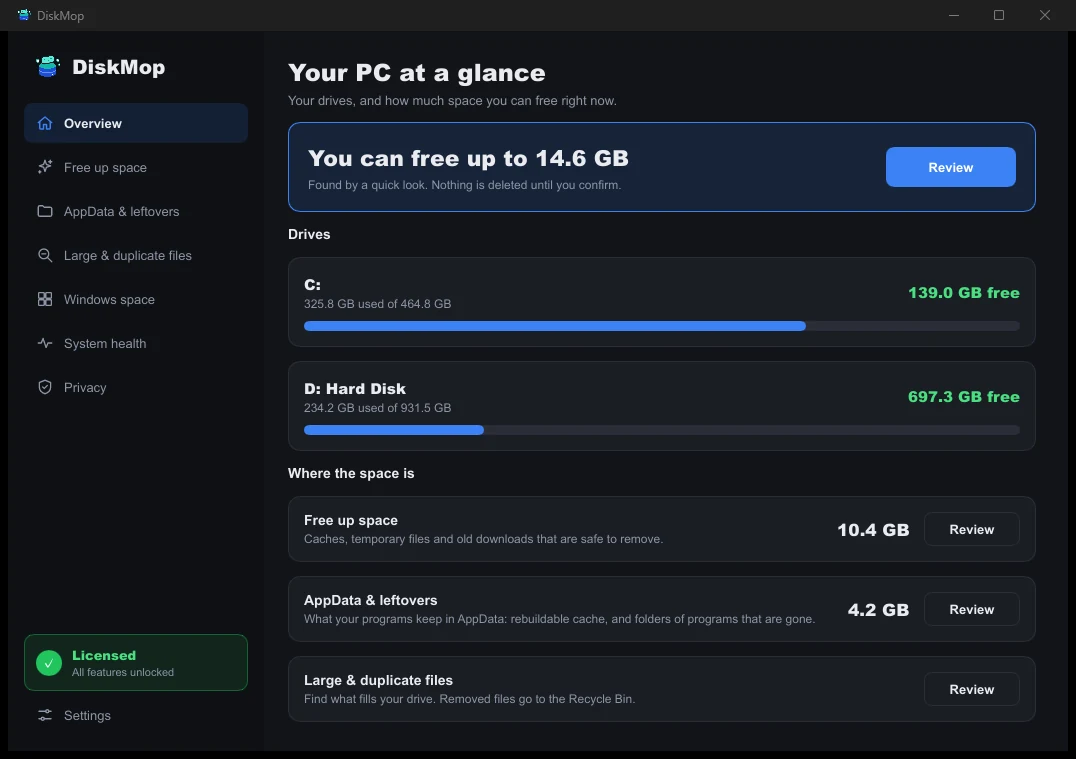
How DiskMop Solves This: Overview
See all your disk usage on a single screen. Instantly identify areas that can be cleaned.
Launch Agents and Daemons
Apart from those lists, programs can register themselves with launchd, the part of macOS that starts background work. They leave small settings files in three places: your own Library > LaunchAgents folder, the system-wide /Library/LaunchAgents folder and /Library/LaunchDaemons. Software for printers, VPNs, updaters and cloud storage often does this.
DiskMop's System health page lists these with the program each one starts. Agents in your own folder can be turned off from the list: DiskMop disables the agent and stops it, keeps the program installed and keeps its file, so you can turn it back on. Items in the /Library folders belong to the system or to an installer and are only shown. This feature is part of the version you download from diskmop.com.
How to Decide What to Turn Off
Turn off what you recognise and do not need at login: a chat app you open yourself, a game launcher, an updater for software you rarely use. Look up names you do not recognise before you touch them, and leave security software, drivers and anything from Apple alone.
Because turning off keeps the program installed, it is easy to test: switch an item off, restart, and switch it back on if something stops working. Scanning is free; changing several items at once is part of DiskMop Pro, a one-time purchase. If an app is gone for good, delete its leftovers as well.
Frequently Asked Questions
How do I stop apps from opening when my Mac starts?
Open System Settings > General > Login Items & Extensions, select the app under Open at Login and click the minus button. Turn off helpers you do not need under Allow in the Background.
Does removing a login item uninstall the app?
No. It only stops the app from starting by itself. You can still open it yourself and add it back later.
What are launch agents and daemons?
Small settings files that tell macOS to start a program in the background. They live in your Library > LaunchAgents folder and in the system-wide /Library/LaunchAgents and /Library/LaunchDaemons folders.
Is it safe to turn off startup items in DiskMop?
Yes for items in your own folder: the program stays installed and the settings file is kept, so you can turn it back on. DiskMop only shows the system-wide items and does not change them.
Verdict
Two lists decide what starts with your Mac. System Settings handles Login Items and background items, and background agents are the part most people never see.
DiskMop for Mac lists those agents, shows what each one runs and turns off the ones you own without uninstalling anything. Scanning is free, so you can look before you change a thing.
See what starts with your Mac using DiskMop
DiskMop automatically scans, identifies, and safely cleans hidden caches, app leftovers, and system junk.