How to Find Large Files on Your Mac (and What to Do With Them)
Four ways to see the biggest files, from Finder to a size-ranked list and a disk map
Short answer: in Finder press Command-F, choose This Mac, add the File Size rule and set it to is greater than 500 MB. For a ranked list across your whole drive, DiskMop for Mac has Large & duplicate files > Large files, which lists the largest files first, and a Disk map that shows which folders are heavy.
This guide compares the built-in options, explains how to read a list of large files without deleting something you need, and shows how to use the minimum size and the disk map to find gigabytes fast.
Key Takeaways
- Finder can search by size: Command-F, This Mac, then the File Size rule; macOS Storage settings also lists large files under Documents.
- In Terminal, find ~ -type f -size +500M lists files over 500 MB in your home folder, and du -sh * | sort -h ranks the items of the current folder by size.
- DiskMop's Large files tab lists the largest files first with a minimum size of 50 MB, 100 MB, 250 MB, 500 MB or 1 GB, and its Disk map tab shows folder sizes so you can drill down.
- Removed files go to the Trash and the space returns only after you empty it; items inside system folders and app packages are never offered.
Find the biggest files on your Mac with DiskMop
DiskMop automatically scans, identifies, and safely cleans hidden caches, app leftovers, and system junk.
Ways to find large files on a Mac
| Method | Shows | Scope | Good for |
|---|---|---|---|
| Finder search (Command-F) | Files over a size you set | This Mac or a folder | A quick one-off look |
| Storage settings | Large files under Documents | Your user files | A first overview by category |
| Terminal: find and du | Paths and sizes as text | Any folder | People who like the command line |
| DiskMop Large files and Disk map | Largest files first, folder sizes | Your files or a whole drive | Ranked list with review and Trash |
Start With Finder and Storage Settings
In Finder press Command-F, set the search to This Mac, then use the first rule to pick File Size and choose is greater than. Type 500 MB and you get every file above that size. Sort by Size to see the biggest at the top. You can save the search as a Smart Folder and come back to it later.
Storage settings (System Settings > General > Storage) show how space divides into apps, documents and other categories, and the Documents entry lets you review large files and downloads. It is a good overview but it stays at category level and does not rank every large file on the disk.
A Few Terminal Commands
find ~ -type f -size +500M prints every file in your home folder above 500 MB. In any folder, du -sh * | sort -h lists its items from smallest to largest, so the last lines are the heavy ones. These are reliable but you read plain text, and you still have to open each folder to decide what a file is.
Be careful with commands that delete. Listing is harmless; removing from Terminal skips the Trash entirely.
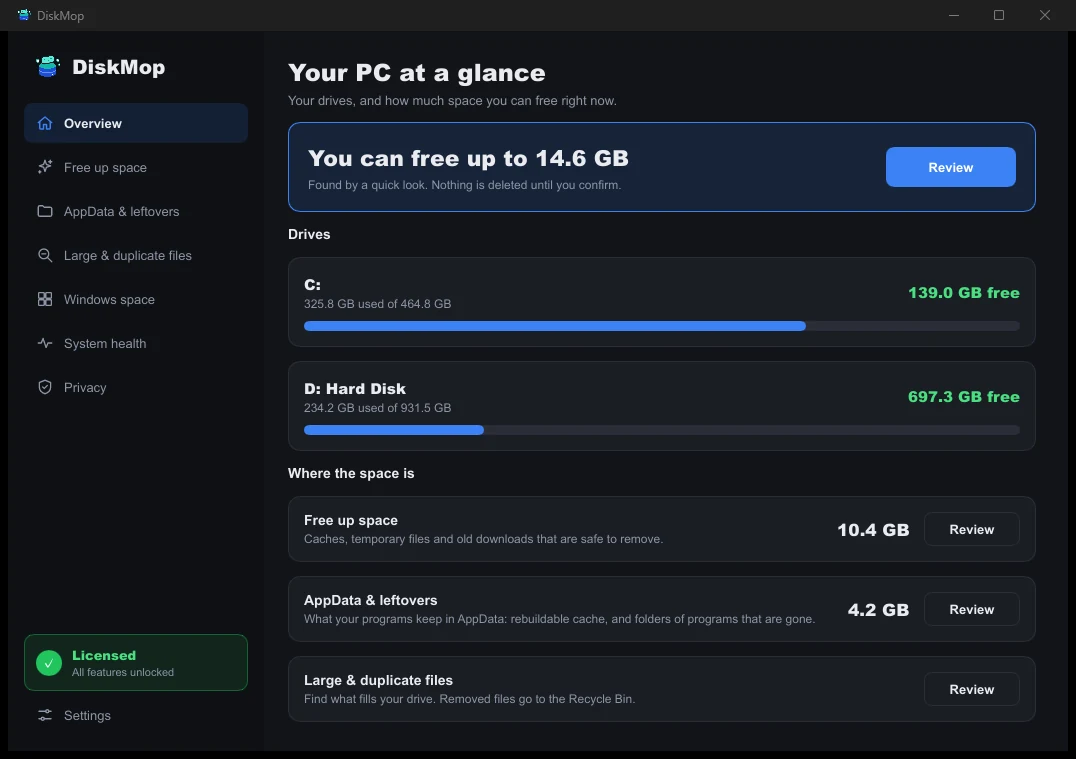
How DiskMop Solves This: Overview
See all your disk usage on a single screen. Instantly identify areas that can be cleaned.
Big Files and the Disk Map in DiskMop
Large files scans the place you chose and lists the largest files first, up to a few hundred, with the folder each one lives in. Raise the minimum size from 50 MB to 1 GB to cut the noise when you only care about the giants. Typical finds are old disk images, video projects, virtual machine files, app caches and Docker data.
The Disk map answers a different question: not which file, but which folder. It shows the size of every folder in the current place and lets you open one to look inside, which is the quickest way to learn that a single project folder or the Library takes half your drive.
Deciding What Is Safe to Remove
A large file is not automatically junk. Delete what you recognise and can recreate or no longer need, such as an installer, an exported video, an old archive. Leave files that belong to apps unless you know what they do; app data usually shows up under Library, where Library and leftovers cleanup explains what is rebuildable.
DiskMop moves files to the Trash and refuses system folders and the inside of app packages, so a mistake is recoverable until you empty it. Scanning is free; cleaning many items at once is part of DiskMop Pro, a one-time purchase, and the free version lets you try a few single removals. For duplicates specifically, see how to find duplicate files on Mac.
Frequently Asked Questions
How do I find files over a certain size on a Mac?
In Finder press Command-F, choose This Mac, add the File Size rule and set it to is greater than, for example 500 MB. In DiskMop, open Large & duplicate files, set the minimum size and scan.
What is the minimum size option in DiskMop?
The Large files tab offers 50 MB, 100 MB, 250 MB, 500 MB and 1 GB. A higher value shows only the biggest files and gives a shorter list.
What does the Disk map show?
The size of each folder in the place you are looking at. You can open a folder to see what is inside, which helps when many files add up to a lot rather than one file being huge.
Is it safe to delete large files?
It is safe for files you recognise and no longer need. DiskMop moves them to the Trash, so you can restore a file until you empty it, and it will not offer system folders or the inside of apps.
Verdict
Finder and Terminal can find large files, and Storage settings gives a category overview. What they do not give you is one ranked list across the drive with a place to review and remove.
DiskMop for Mac lists the biggest files first, adds a Disk map for folders and moves what you remove to the Trash. Scanning is free, so you can see where the space went before you decide.
Find the biggest files on your Mac with DiskMop
DiskMop automatically scans, identifies, and safely cleans hidden caches, app leftovers, and system junk.